
Table Styles · Full edition
The table style editor PowerPoint never had
Design a table style once: fill color, borders, font and cell margins, per header row, total row, column, banded row or banded column. Export it as a .ksstyle file and use that same style afterwards, without retyping anything, in the other two programs as well.
One editor for Word, PowerPoint and Excel
The Table Branding Manager is inspired by the table style editor in Word, but is more robust, more intuitive, and works for Word, PowerPoint and Excel.
Fill color, borders, font and cell margins are set per part: the whole table, header row, total row, first or last column, banded rows and banded columns. Choose the part on the left, and see a live preview of the result on the right.
In that preview you can use checkboxes to indicate what you want to see: header row, total row, first and last column, banded rows and columns, just like a table in one of the applications, but now in the editor.
Word has its own table style editor, but it isn't intuitive, and sometimes certain settings simply can't be changed.
Excel has a working table style editor. But Excel table styles have different capabilities. That's why the Table Branding Manager lets you import the supported properties of a Word or PowerPoint table style into Excel, after which you fine-tune where needed with Excel's own editor.
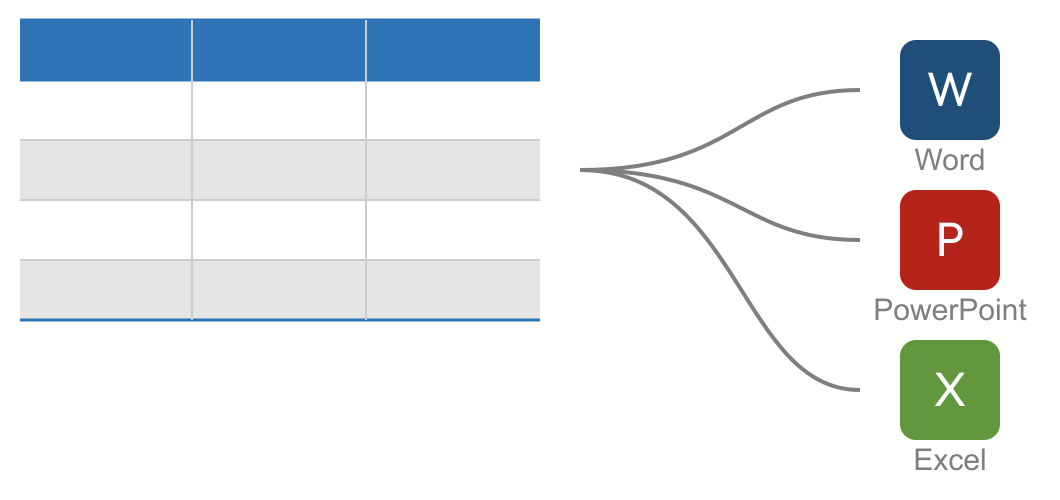
The .ksstyle file: the connection between the three programs
For Word and PowerPoint every function is available: adding, duplicating, editing, renaming or deleting a style, setting it as the default style, or adjusting the colors.
Excel table styles are built differently, and Excel has a working editor of its own, so adding, duplicating and editing aren't available for Excel in this tool. Renaming, deleting and setting a style as default work for Excel styles just as well as for Word and PowerPoint.
The connection between the three is the .ksstyle file: export a style to it, then import it into a Word, PowerPoint or Excel template or file. Conversions are needed for Excel, because table styles work differently there than in Word and PowerPoint. So you may still want to fine-tune the style in Excel, but the groundwork is done.
That way you design a table's formatting once, instead of rebuilding it by hand three times.
Style
Save as
Also works directly on documents that already exist
Changing a table style in a template usually doesn't work retroactively: Word doesn't automatically update the tables in documents that were already created from that template by default. That's why this tool doesn't just open and edit templates (.potx, .dotx, .xltx), but also regular documents, presentations and workbooks directly.
So an outdated table in an existing document doesn't need to be rebuilt by hand. You simply update it, just like in the template.
Want to roll this out to colleagues who shouldn't need to design anything? The Import-only edition imports a .ksstyle file you created into existing documents, without anyone being able to accidentally change a style.
Replace every color, in seconds
Duplicate an existing style and open Replace color: you'll see, in one overview, every color the style uses, in fill color, borders and font alike, across every part (header row, total row, first column, banded rows...). Colors that recur in multiple places are automatically deduplicated to a single row.
Choose the replacement per color and everything is updated at once, as a single step in the undo history. That way you turn “red” into “blue” in seconds, without going through the header row, total row, first column and banded rows one by one.
Colors in use
Banded rows · border
Within the technical boundaries
Honest about the limits
Word, PowerPoint and Excel each store a table style in their own way, and their capabilities differ from one another. And table styles support exotic properties that I don't encounter in practice.
No gradient or pattern fills. In the table style galleries, for example, you can create a gradient in a border. Many border styles are supported too, of which I only encounter a small fraction in practice. I try to keep the tool as intuitive as possible, and deliberately leave some options out.
Font size and underline aren't part of the table style in PowerPoint. There, that belongs to the template itself, a choice made by PowerPoint, not by this tool. What is configurable has been made as complete as possible for all three programs.
Cell margins are only part of a table style in Word. PowerPoint and Excel don't have that concept at the style level, so it isn't configurable there either.
The Table Branding Manager supports the options actually used in professional templates in practice. Whatever is already in a style but isn't supported by this editor is preserved as is.
I'm always open to feature requests. If I've overlooked an important style property, I'll try to add support for it.
Who is the Full edition for?
I use the Table Branding Manager myself, to support table styles with minimal effort in the templates I've been building since 2005. On top of that, the Full edition is directly useful to two other groups.
Are you a template builder yourself?
Then this is the tool that lets you do the same for your own templates: design a table style and carry it over into Word, PowerPoint and Excel without retyping anything.
Does your company manage its own templates?
Then whoever manages the templates designs or updates the table styles with the Full edition. Want to roll those styles out to colleagues who don't need to design anything themselves? That's what the Import-only edition is for.